Introduction
IPTV (Internet Protocol Television) has completely changed the way people consume entertainment in the last several years. IPTV applications allow users to watch live TV channels, movies, and on-demand shows from anywhere at any time. One of the most popular IPTV players available today is IPTV Smarters Pro. It’s a fantastic app that has a beautiful user interface and works on almost any device – including the Amazon Firestick.
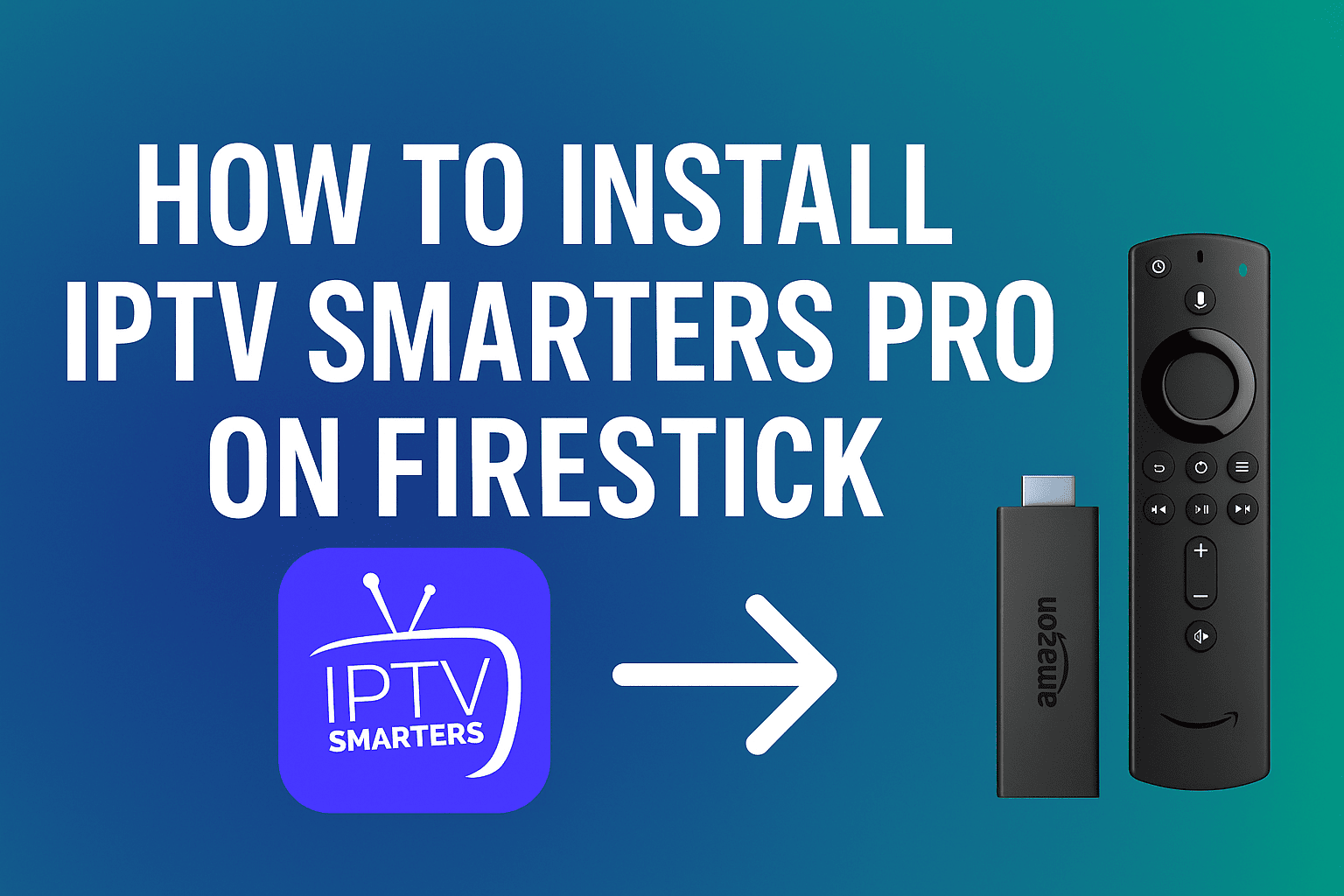
If you’re looking to take your viewing experience a step further and know how to install IPTV Smarters Pro on your Firestick, this tutorial will walk you through the complete process in a clear and professional manner. It does not matter if you are new to IPTV or a Firestick expert, this guide will allow you to easily and quickly set up IPTV Smarters Pro to your Firestick safely.
What is IPTV Smarters Pro?
IPTV Smarters Pro is a robust IPTV media player that enables users to stream content from their respective service providers; IPTV Smarters Pro itself does not host or supply any content. IPTV Smarters Pro is complementary for those that obtain an M3U URL, Xtream Codes API, or a local file-based playlist only.
Key Features of IPTV Smarters Pro:
- User-friendly Interface: Straightforward navigation and clean layout.
- Multi-screen Support: Watch multiple streams at one time.
- EPG Integration: Access to electronic program guides for live channels.
- Parental Control: Manage and block access to content.
- Subtitle & Language Options: Supports multiple language options.
- Compatibility: Android, iOS, Smart TVs, and Firestick.
This makes IPTV Smarters Pro a great option for Firestick users looking for a one-stop IPTV application.
Reasons to get IPTV Smarters Pro on Firestick
The Amazon Firestick is one of the most used streaming devices in the world. When you install IPTV Smarters Pro on your Firestick, you can stream in high definition on a big screen along with Firestick’s speed and convenience.
Benefits include:
- Watch IPTV content in HD or 4K resolution.
- Stream with minimal buffering due to stable connections.
- It is intuitive and customizable for a great user experience.
- No need for any more devices or cables.
Because the app is not available on the Amazon App Store, the user has to sideload IPTV Smarters Pro onto their Firestick, which can be done with the simple downloader app.
Step-by-Step Instructions: Installing IPTV Smarters Pro on Firestick
Carefully follow the below instructions to install the IPTV Smarters Pro app onto your Firestick device.
Step 1: Prepare Your Firestick to Install
Because IPTV Smarters Pro is not available on the Amazon App Store, you need to allow “Apps from Unknown Sources”.
- Power on your Amazon Firestick and navigate to the Home Screen.
- Click the Settings (gear icon on top right).
- Click My Fire TV or Device & Software.
- Select Developer Options.
- Turn on ADB Debugging.
- Turn on Apps from Unknown Sources.
This will enable you to install third-party apps that do not appear on the Amazon Store.
Step 2: Install the Downloader App
The Downloader app is an important utility that allows you to download APK files directly to your Firestick.
- On your Firestick home screen, navigate to Find → Search.
- Type in Downloader using the on-screen keyboard.
- Select the Downloader App from the search results (orange icon).
- Click Download or Get to install the app.
When Downloader has downloaded, click Open.
Step 3: Download the IPTV Smarters Pro APK File
Having installed the Downloader app, you can now use it to download the IPTV Smarters Pro installation file.
- Open the Downloader app.
- In the URL bar, enter either the official IPTV Smarters Pro APK link or a link verified by us to download the latest version from the developer’s site.
- Once you’ve done that, click on Go.
- Wait for the APK file to finish downloading.
Step 4: Install IPTV Smarters Pro on the Firestick
Once the APK file has finished downloading:
- A pop-up will appear asking you to install the application.
- Click on Install.
- Wait for it to install (it may take a minute).
- Once it is done installing, click on Open to open the IPTV Smarters Pro application immediately or Done if you would like to go back to the Downloader.
- Then delete the APK file will free up space.
Step 5: Open IPTV Smarters Pro and Configure
After the installation, you can now open the app and set it up.
- From the home screen on the Firestick, go to Apps & Channels.
- Locate the IPTV Smarters Pro and tap on it to open the app.
- Read the Terms of Use and accept.
- Tap on Add New User.
- Choose your preferred login method:
- Load Your Playlist or File/URL
- Login with Xtream Codes API
- Login with Username and Password
Input the details given by your IPTV provider and tap on Add User.
Your playlist will be loaded, and you’ll see live TV, movies, and series categories.
Troubleshooting Suggestions
If IPTV Smarters Pro does not load or is crashing:
- Ensure you have a stable internet connection.
- Install the app version from your trusted source.
- Clear the app’s cache: Settings → Applications → Manage Installed Applications → IPTV Smarters Pro → Clear Cache.
Use a VPN – Virtual Private Network – while streaming IPTV to protect your privacy and avoid geographical limitations.
Is IPTV Smarters Pro Legal?
Yes, IPTV Smarters Pro is a legal app. However, it is merely a media player that does not provide content. Legality relies only on the IPTV provider. With any IPTV service, you should always examine whether the proper licensing rights are in place to stream the content.
Conclusion
Setting up IPTV Smarters Pro on Firestick is a simple task that provides endless streaming options. With a clean interface, rich streaming options, and many options for compatibilities, it greatly enhances your Firestick experience.
If you follow along with the step by step guide above, you will easily be able to install IPTV Smarters Pro and stream, safely and efficiently, high-quality live TV, as well as movies and shows on your Firestick.
Remember to always use verified IPTV services, and a VPN when applicable, to ensure a safe and easy streaming experience.
Frequently Asked Questions (FAQs)
1. Can you get IPTV Smarters Pro on the Amazon App Store?
Currently, no, it is not available in the Amazon App Store, which means you will need to sideload the app using a third-party application known as the Downloader application, which is safe, easy to use, and a popular option among Firestick users worldwide.
2. Should I use a VPN to watch IPTV Smarters Pro on Firestick?
Yes, it is highly recommended to use a VPN or a Virtual Private Network while you are using IPTV Smarters Pro. This protects your identity, keeps your online activity private, and helps you address geo-restrictions and avoid some problems with your ISP, including throttling and legal issues you could face as a result of using a non-verified IPTV service.
3. Can I watch free channels while using IPTV Smarters Pro?
IPTV Smarters Pro, itself, does not provide the content or the channels, it is just a player that allows you to watch IPTV content from your IPTV service provider. To watch live TV or movies, there is typically a subscription to a legal IPTV service that you have to subscribe to. You would have to have the playlist or your API information to add to the IPTV Smarters Pro application.